Using any tablet as additional display

Sometime you need additional display and it would be handy to use other device as second (or third) monitor. If you have apple devices you can use Apple Sidecar but it only works with Macbooks and iPads. There is option to use any display (tablet, TV or even another laptop) as additional display. Only requirement is to have network access to your computer. It works best in same LAN network but you can use it trough internet but your mileage may vary.
Setup Display on Linux
First we need to find disconnected monitor that we can manually enable it. In this example I have HDMI-A-0 output available.
$ xrandr -q |grep disconnected
HDMI-A-0 disconnected (normal left inverted right x axis y axis)
If you don't have any empty outputs you could try to use virtual display but I didn't try it.
Setup resolution
If you have resolution that is already defined by your other monitor you can just add it to your disconnected input. To list available modes run xrand
$ xrandr
Screen 0: minimum 320 x 200, current 5360 x 1440, maximum 16384 x 16384
DisplayPort-0 connected primary 3440x1440+0+0 (normal left inverted right x axis y axis) 800mm x 335mm
   3440x1440     59.94 +  74.98*   29.99
   2560x1440     59.95
   1720x1440     59.98
   1920x1200     59.94
   1920x1080     60.00    60.00    50.00    59.94
   1600x1200     59.94
   1680x1050     59.95
   1280x1024     75.02    60.02
   1440x900      59.89
   1280x960      60.00
   1280x800      59.81
   1152x864      75.00
   1280x720      60.00    50.00    59.94
   1440x576      50.00
   1024x768      75.03    70.07    60.00
   1440x480      60.00    59.94
   832x624       74.55
   800x600       72.19    75.00    60.32    56.25
   720x576       50.00
   720x480       60.00    59.94
   640x480       75.00    72.81    66.67    60.00    59.94
   720x400       70.08
HDMI-A-0 disconnected (normal left inverted right x axis y axis)
To add 1920x1080 resolution run:
$ xrandr --addmode HDMI-A-0 1920x1080
Custom resolution
If your tablet has weird resolution you can setup custom resolution for pixel perfect output. To add custom resolution we need to add custom modeline for this input. Firs we generate modeline by using cvt command. In this example I'm using resolution of iPad Pro 11' 2384x1668 with 60 Hz refresh rate
$ cvt -h
usage: cvt [-v|--verbose] [-r|--reduced] X Y [refresh]
...
$ cvt 2384 1668 60
# 2384x1668 59.94 Hz (CVT) hsync: 103.63 kHz; pclk: 338.25 MHz
Modeline "2384x1668_60.00"  338.25  2384 2568 2824 3264  1668 1671 1681 1729 -hsync +vsync
To add new dummy mode, we need to copy modeline output from cvt command and add new mode to our output
$ xrandr --newmode "2384x1668_60.00"  338.02  2384 2560 2824 3264  1668 1669 1672 1726 -hsync +vsync
$ xrandr --addmode HDMI-A-0 2384x1668_60.00
Scaling
If you need to set scaling 2 times run command:
$ xrandr --output HDMI-A-0 --scale 0.5x0.5
Enable display
To enable display (in my case below monitor connected via DisplayPort-0):
$ xrandr --output HDMI-A-0 --mode 2384x1668_60.00 --below DisplayPort-0
Setup display on Windows
You cannot setup dummy display output on Windows, your only option is to buy HDMI dummy and set it up as a "normal" display.
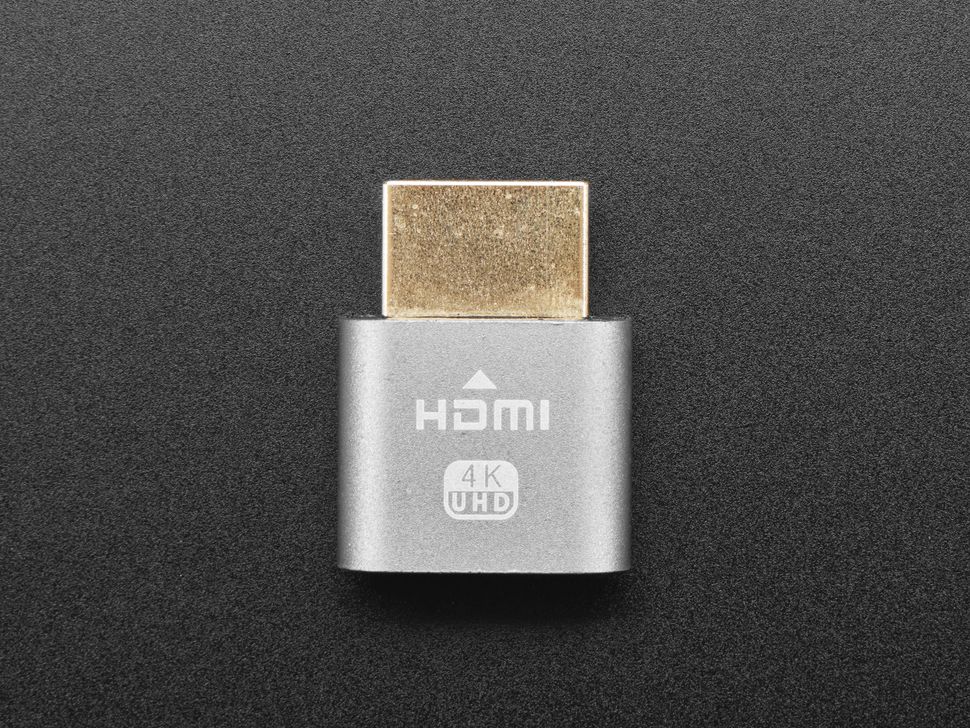
Stream display
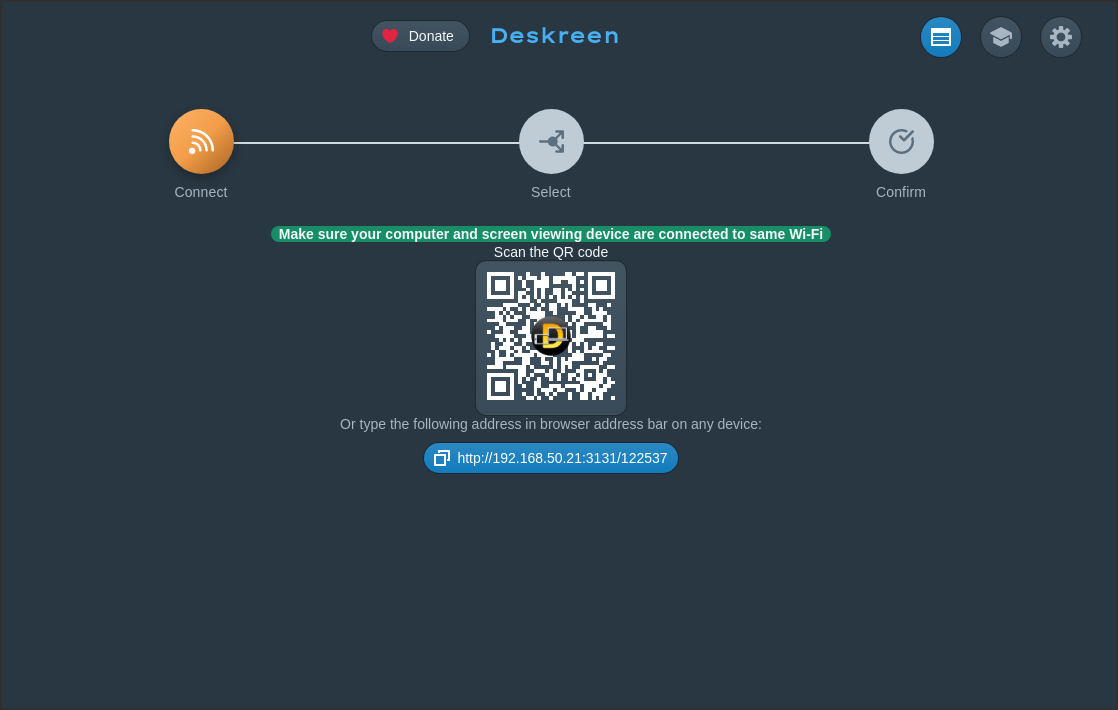
To stream display I will be using Deskreen, its a free open source software that doesn't have noticeable delay.
After starting application you have url and QR code to connect to your machine
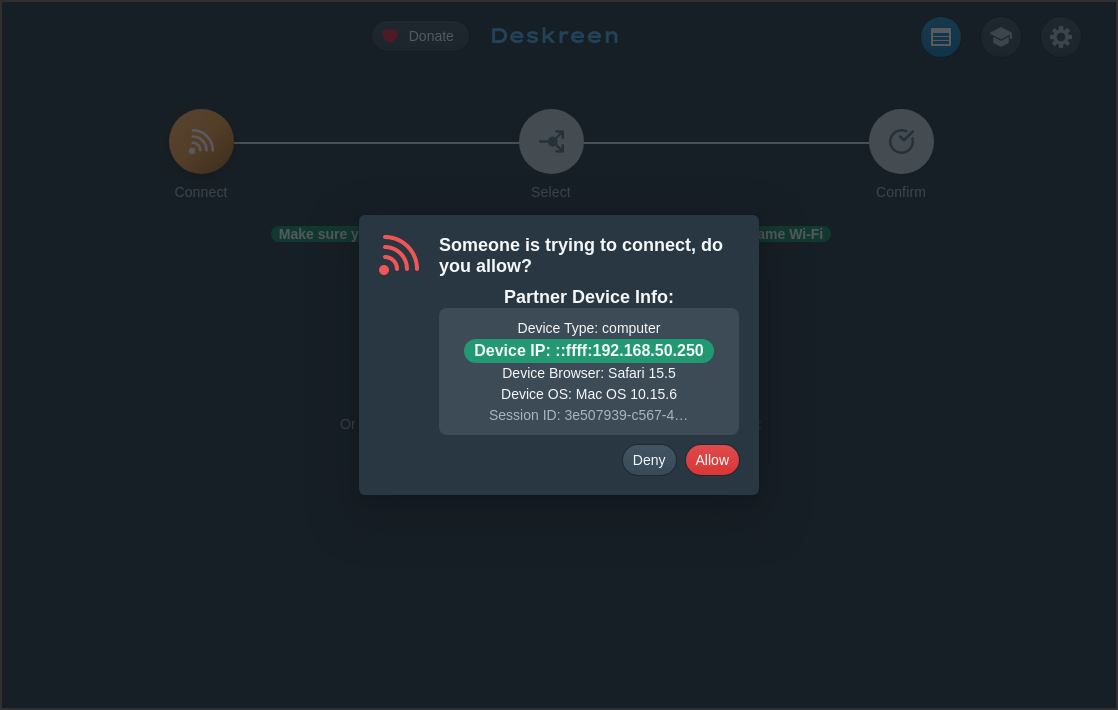
After connecting from tablet you will get dialog option to confirm connection
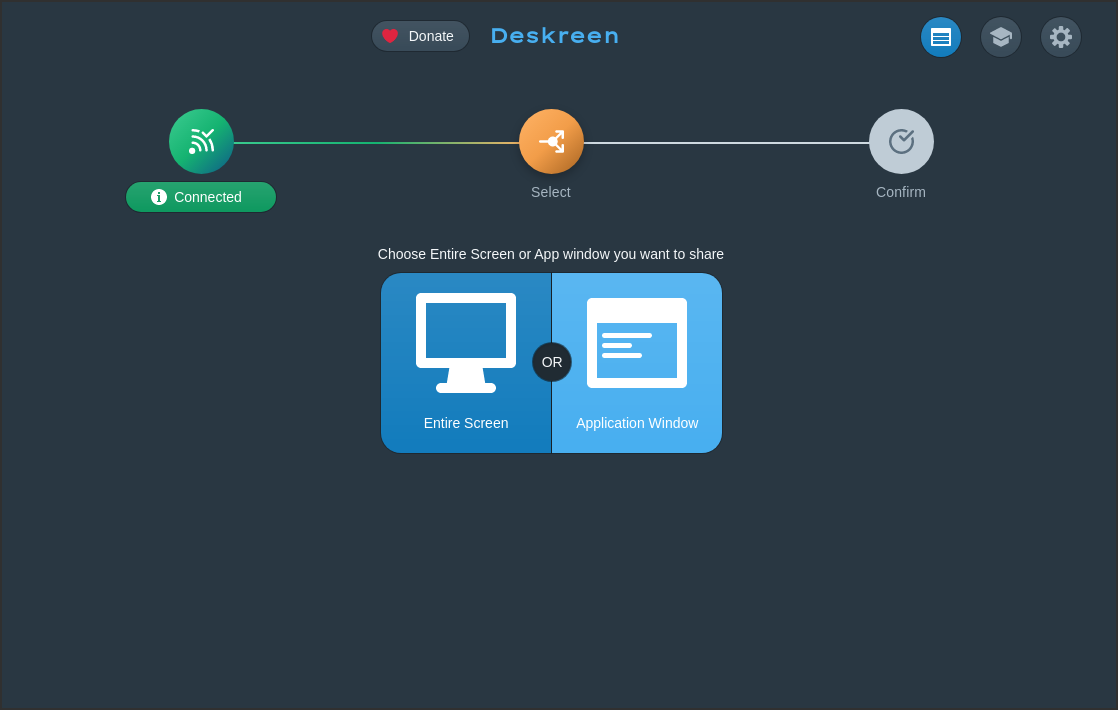
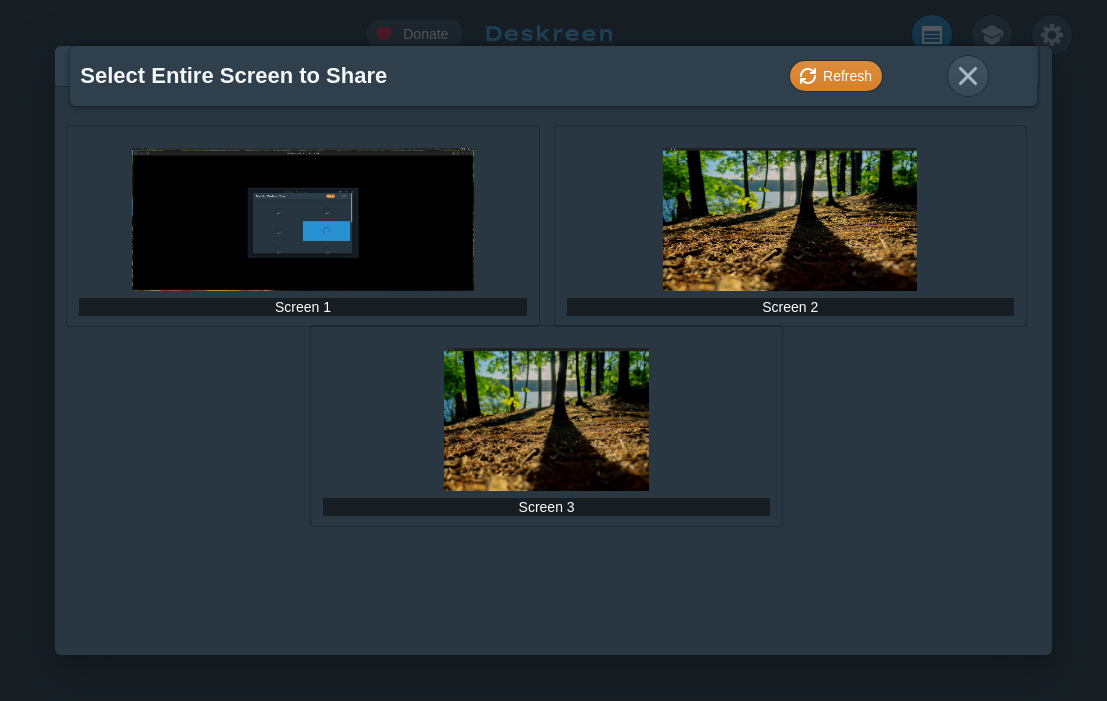
After that select entire screen
And choose your dummy display, here it is Screen 3
And last step is to confirm that everything is correct
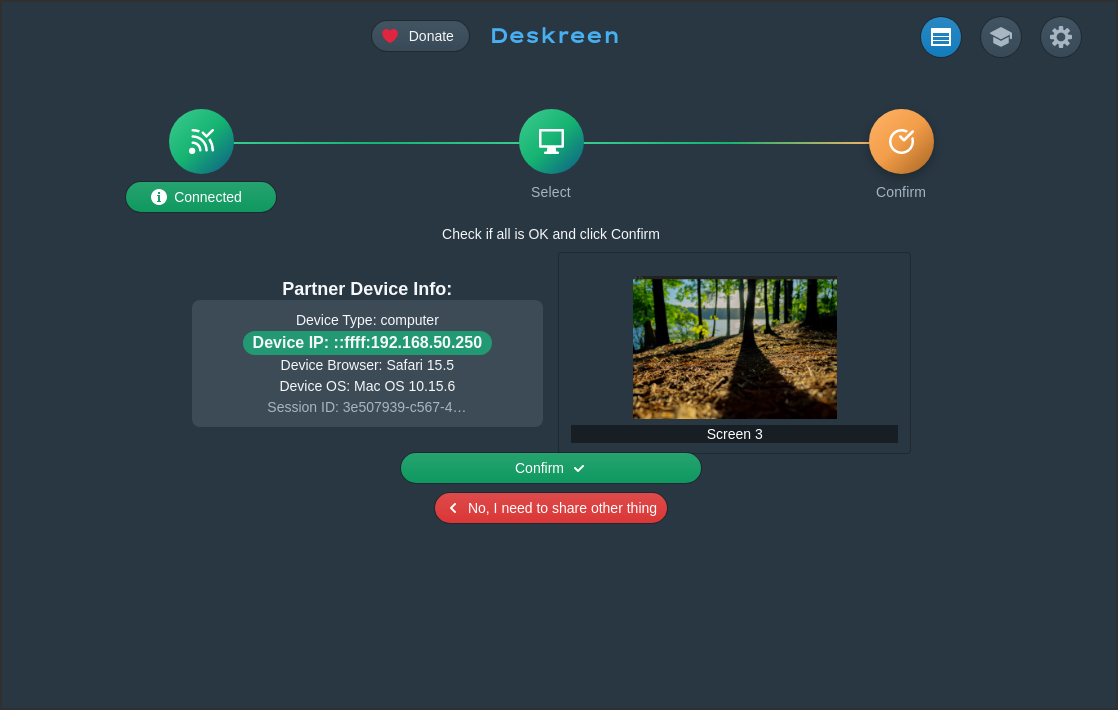
Now you should have desktop display on your tablet
Issues
Flickering
If you have an issue with flickering display caused by scaling you can set scaling to 0.9999, this doesn't change your screen scaling but fixes issues. To change scaling for output DisplayPort-0 run command:
xrandr --output DisplayPort-0 --scale 0.9999x0.9999